👋 Welcome
You have successfully cleaned and organized your ChatGPT history! This ZIP file contains years of your thoughts, research, and conversations, converted into a "Gemini Migration Kit"—a format Google Gemini can understand.
This guide will walk you through turning these files into a custom "Gem"—a version of Gemini that knows everything you've ever discussed.
You can learn more about Gemini Gems here: https://gemini.google/overview/gems/.
Note: Only conversations have been extracted from ChatGPT. Media (Images, etc) from ChatGPT remain in your original Archive and are not included here.
Step 1: Unzip Your Kit
Important: You must unzip (extract) the file you just downloaded
(Gemini_Migration_Kit.zip) before proceeding.
Inside the extracted folder, you will find:
- GEM_INSTRUCTIONS.txt: The "Brain." It tells Gemini how to organize your memories.
- Topic_Group_XX Folders: These contain your actual conversations, cleaned and organized by topic.
- Chat_History_List.txt: A master reference list of every single conversation in your archive.
Step 2: Create Your Gem
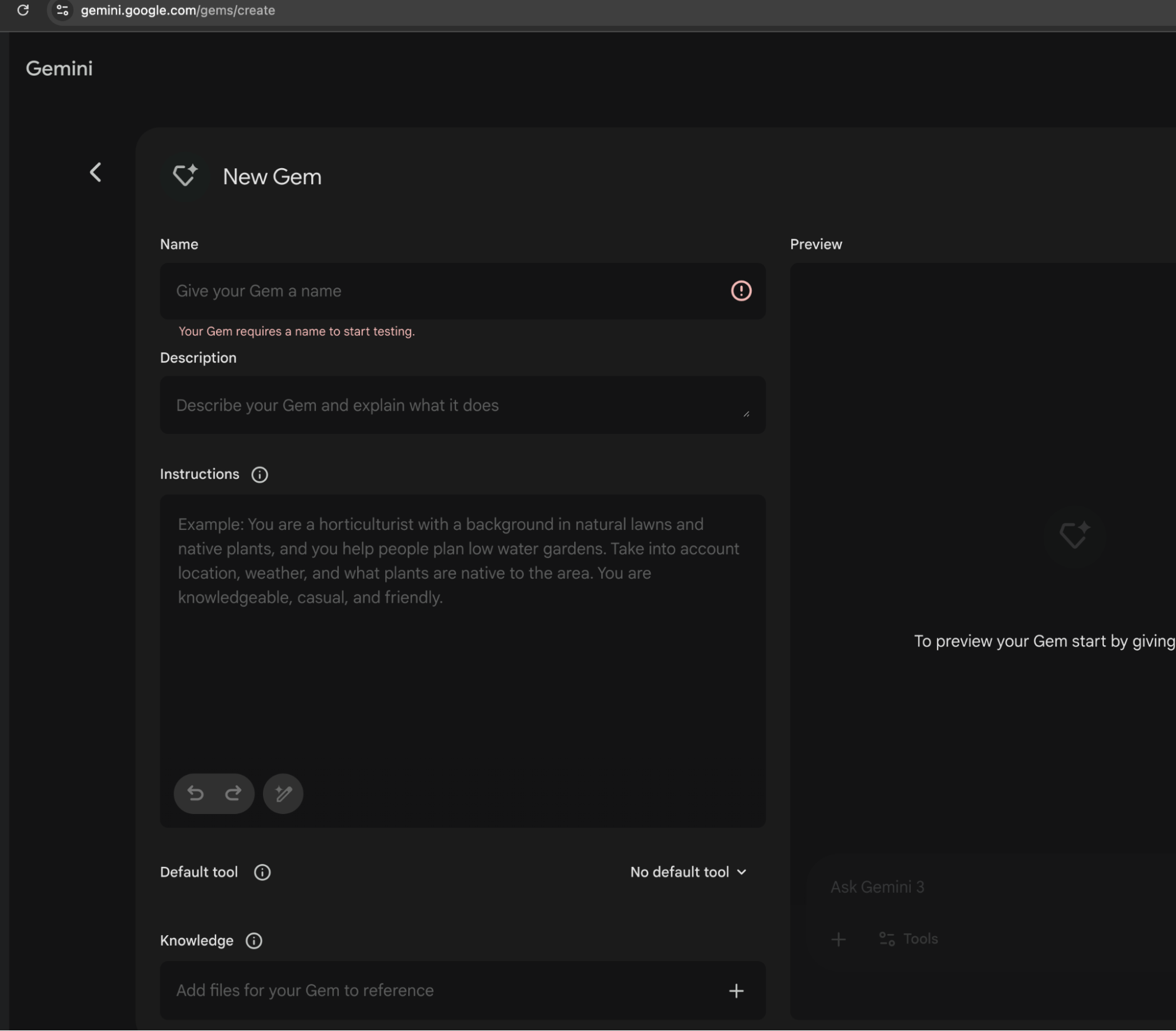
- Open your browser and visit: gemini.google.com/gems/create. (This link opens the "New Gem" editor directly).
Step 3: Install the "Brain"
Now we need to tell this Gem who it is.
- Name your Gem: We recommend something like "My Second Brain" or "ChatGPT Archive".
- Open the file: Double-click
GEM_INSTRUCTIONS.txtfrom your unzipped folder. - Copy & Paste: Copy the entire text from that file and paste it into the "Instructions" box in Gemini.
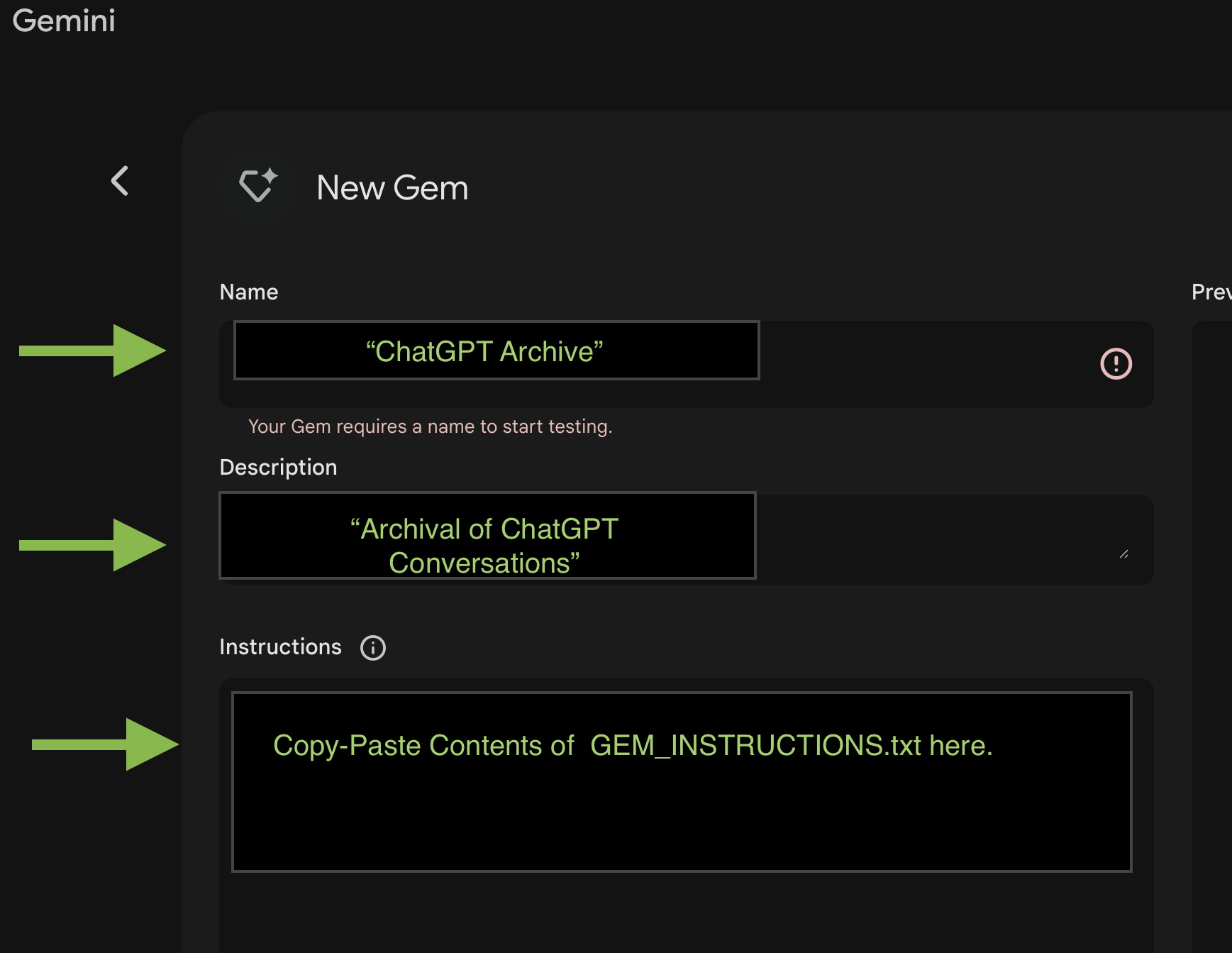
Why? This text contains special logic that helps Gemini intelligently search your history without getting confused by the large amount of data.
Step 4: Upload the "Memory"
This is where we transfer your history.
- Scroll down to the "Knowledge" section in the Gem editor.
- Click "Add knowledge" (or + button).
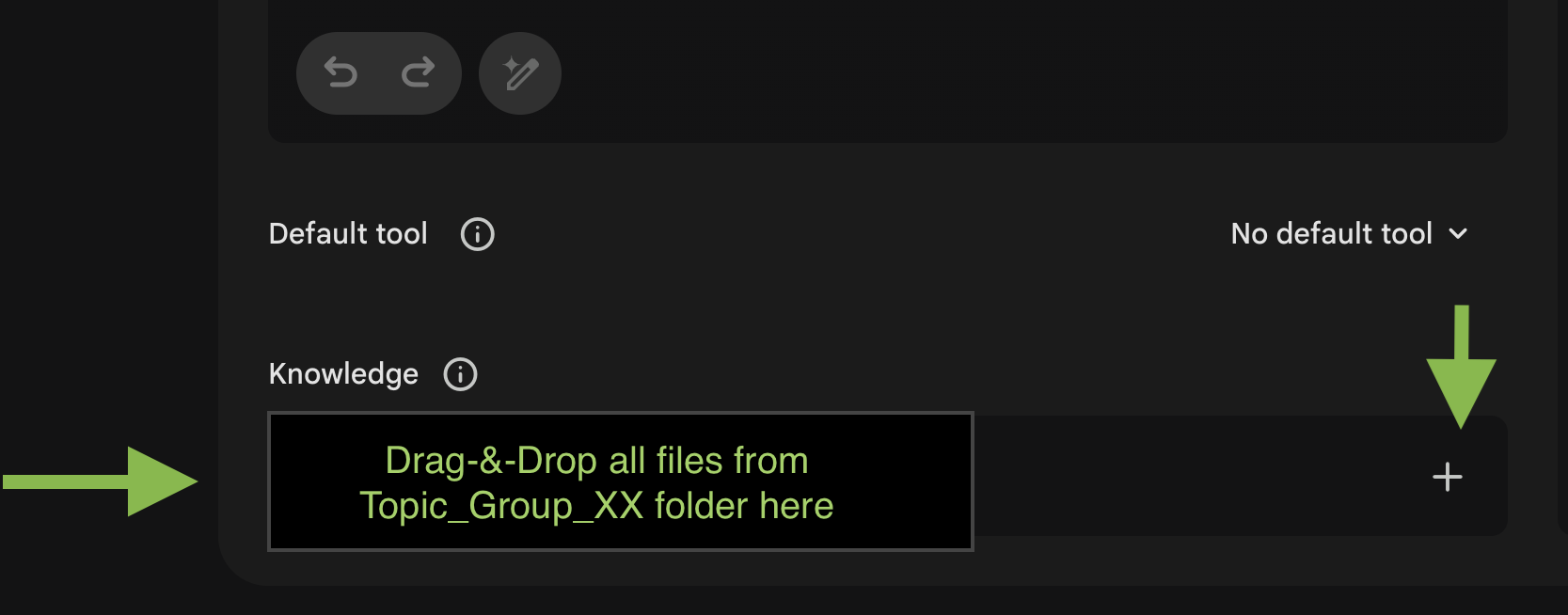
- Navigate to your unzipped Gemini Migration Kit folder.
- Select the Topic Folders: You can select all the text files inside the
Topic_Group_xxfolders.
- Tip: You can drag and drop entire batches of files at once.
- Wait for the upload bars to turn green/complete.
- Click Create to finish!
How to Use Your New Gem
Your Gem is now ready! It has read your entire history. Select it from the sidebar and start asking questions.
Try these prompts:
- "Based on my chat logs, summarize what did I research about in past.."
- "Summarize my conversations about career, in past conversations."